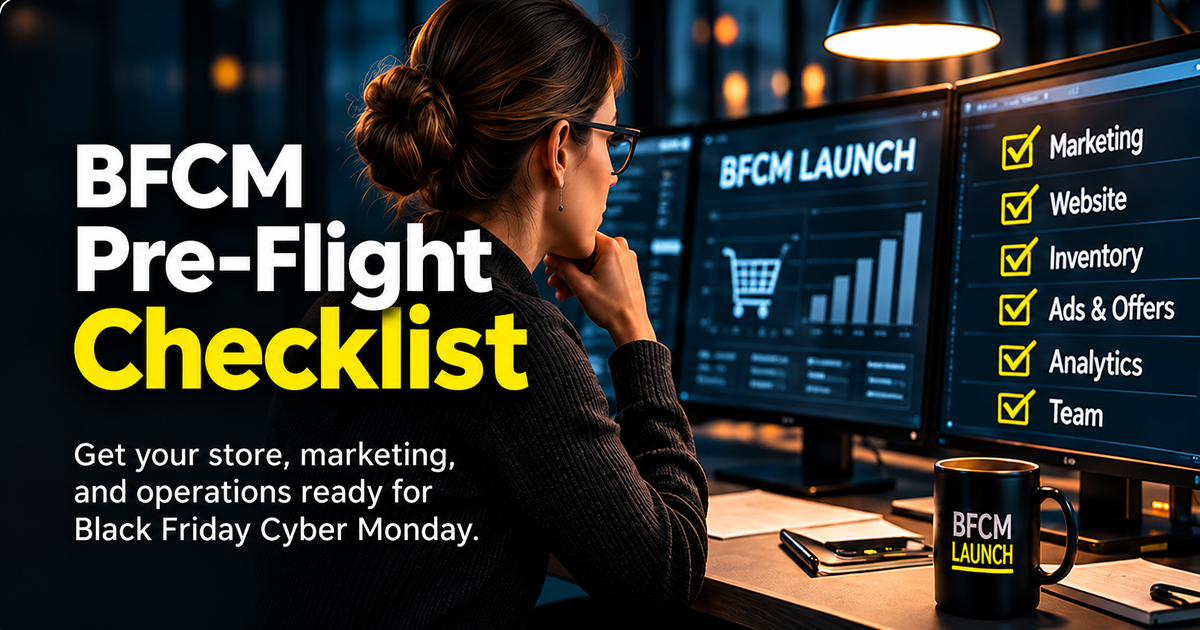
Before takeoff, pilots work through a pre-flight checklist.
Even after thousands of flights.
They run it because even experts miss things, and a small miss can become a big problem in the air.
Your Black Friday sale works the same way.
You’ve already done the hard work on your offer, your emails and your ads. One small issue can still cost you sales when the traffic arrives, like a payment option that fails on phones or an ad that stopped running overnight.
This Black Friday Cyber Monday (BFCM) checklist won’t ask you to build anything new. Most checks confirm something that should already be in place and take only a few minutes, so you can run all 28 checks the night before your sale goes live.
Most of it needs no technical skills. You’ll look at what your customers see, and when something looks wrong, the check tells you whether to fix it, turn it off or call whoever manages it.
Run the checks for the tools you already use, and skip anything that doesn’t apply to your business.
If you’re short on time, start with your checkout, your discounts, your sale schedule and your ad payments.
Let’s walk through it, one area at a time.
Your Website
Check your store the way a lot of your shoppers will see it: on a phone, using cellular data instead of Wi-Fi.
- Open your homepage, one of your top pages and your cart on your phone over cellular data. Each page should load, and your sale banner shouldn’t push your products off the screen. If a section that isn’t essential looks broken, hide it for the weekend instead of trying to edit the code.
- Postpone nonessential changes until after the sale, like theme updates, new apps and app permission requests. If an urgent security fix comes up, contact whoever manages your site, then run through your checkout again to make sure it still works.
- Open your site in a private or incognito window to see it the way a new shopper does. Make sure your pop-ups and banners show the right offer and don’t conflict with your sale, like a 10% welcome pop-up showing next to a bigger Black Friday discount.
Your Checkout
If your checkout fails, shoppers can’t complete their orders.
- Place one low-value order on your phone with your main payment method, then refund it. Then check that your other payment options show up at checkout. If a method fails or is missing, call that payment provider and hide that method until it’s fixed.
- Make sure the order confirmation email arrived in your inbox and the order shows up in your store’s order list.
- If you use add-on apps at checkout, like upsell offers or shipping protection, make sure they showed up and worked the way they should. If one didn’t, turn it off for the weekend.
- Try a nearby address and one far away. Check that the right shipping rates show up and that free shipping kicks in exactly at the amount you advertise.
Your Discounts and Offers
- Apply every sale code in a real cart, and check any automatic discounts, minimum purchase amounts and product exclusions too. Make sure each amount is right and that discounts don’t combine in ways you didn’t plan.
- Check your sale’s start and end times against your store’s time zone. A sale set in the wrong time zone can open hours late or close hours early.
- Make sure your welcome or cart-recovery codes don’t undercut your sale. These are the codes your store sends automatically to new subscribers or to shoppers who left something in their cart. If one gives a bigger discount than your Black Friday offer, adjust that discount instead of pausing the whole email. Also make sure none of your automatic emails promote an offer that has already ended.
- Click every offer link in your ads and emails, and make sure each page shows the offer you advertised or is scheduled to show it when your sale launches.
Your Products
- Spot-check stock on your top 5 to 10 best sellers. Sold-out items should stop selling, so you don’t take orders you can’t ship, unless you intentionally take preorders or backorders. On Shopify, that means Track quantity is turned on and Continue selling when out of stock is turned off.
- Make sure the sale prices on your product pages match the prices in your ads.
Your Sale Emails and Texts
- Open each scheduled sale email and text. Confirm it’s going to the right list, on the right date and at the right time.
- Send yourself a test and open it on your phone. Tap every link and try the code.
- If you post on social media, make sure your bio link and pinned post point to your sale, and that your scheduled posts have the right dates and offer.
Your Tracking
Tracking shows you, and your ad platforms, which ads and emails are bringing in sales.
- Open the Realtime report in Google Analytics and confirm your recent sales are coming through. Standard reports can take 24 to 48 hours to process, so Realtime is the one to check tonight. Then confirm your recent sales or leads are showing up in each of your ad platforms. If they’re not, call whoever manages your tracking to see if they can resolve the issue before the sale goes live.
Your Paid Ads
Ads can stop running without you noticing right away. These checks usually take a few minutes per platform, and if anything looks wrong, call whoever manages your ads.
- Make sure the card on file for each ad account is valid and has enough limit for your sale budget. Also check any account spending limits and prepaid balances, so your ads don’t stop partway through the sale.
- Google Ads: make sure your campaign budgets match what you planned to spend during the sale. Check that your sale ads are approved and that none are flagged for a broken page. Your ad text and ad extras (the extra lines and links that can show with your ad) should show your sale offer and end dates.
- Google Merchant Center: open the Needs attention tab under Products and make sure your best sellers haven’t been disapproved and don’t have open issues. If you submitted sale promotions to Google, check that none were rejected. Products with unresolved issues can stop showing in Shopping.
- Meta (Facebook and Instagram): make sure your sale ads show Active or Scheduled, with none stuck in review or rejected. Then avoid big edits during the sale. Big changes can restart the learning phase, the period when Meta is still working out who to show your ads to, and performance can be less steady while it relearns.
- Microsoft Ads: if you run them and your account imports campaigns from Google Ads on a schedule, make sure that import won’t overwrite your Microsoft Ads budgets or bids.
- ChatGPT Ads: if you run them, confirm your sale dates and budget are set, your ads have passed review and there are no billing issues on your account.
Your Shipping and Customer Support
- Make sure the holiday shipping cutoff dates on your site match your carriers’ “ship by” dates, for example for arrivals before Christmas, with enough time to pack orders before each carrier’s cutoff.
- Click your returns and FAQ links. Make sure they work and show any holiday return window you offer.
- Make sure someone is covering chat or email over the weekend, with ready answers for questions like “Where’s my order?”, “My code isn’t working” and “Is this back in stock?”
- Test your contact, quote or booking forms, and call your business phone number to make sure they work.
- Google Business Profile: if you have one, check that Special hours are set for your holiday hours.
If Sales Suddenly Drop During BFCM Weekend
Hold off on changing anything right away.
First, test your own checkout on your phone and confirm your ads are still running. Sometimes a drop in reported sales is a tracking issue, and your orders are still coming in.
Next, check the status pages for your store platform and your payment provider. If they’re having an outage, the problem is on their side, and changing your settings is unlikely to help.
Final Thoughts
Pilots don’t run their checklist because they expect something to go wrong. They run it to catch problems on the ground instead of in the air.
Your Black Friday sale deserves the same habit. A few minutes on each of these checks helps protect the weekend you worked hard to plan. Run through the list the night before your sale launches.
If everything checks out, you’re cleared for takeoff.
Want a Second Set of Eyes Before Your Next Big Sale?
This checklist covers what you can confirm in a few minutes by looking at your store the way a shopper does. Some problems don’t show up on your storefront, and they can be easy to miss when you’re in your own store and accounts every day:
- Your Google Ads account. Google can disapprove ads or suspend an account over a policy issue, and you may not notice until sales slow down.
- Your Merchant Center feed. A disapproved product stops showing in Google Shopping, and if it’s one of your best sellers, that can cost you sales during your busiest days.
- Your email sends. One setup mistake, like an automatic email that isn’t turned on or is going to the wrong customers, can hold back your Black Friday emails.
That’s where an outside set of eyes helps. Our team looks at your accounts fresh, without the day-to-day familiarity that makes small issues easy to overlook.
Book your free marketing audit below. Tell us about your business and your goals, and we’ll put together a custom audit that shows where you may be losing sales and where you have room to grow, so you can see what to focus on first for the rest of the holiday season and your next big sale.