
Seeing a red “Disapproved” status next to your best-performing advertisements is an instant headache. One morning your campaigns are driving qualified leads and sales, and by lunch your traffic grinds to a halt because automated filters flagged your ad copy or landing page.
At StubGroup, we have spent nearly fifteen years helping thousands of businesses navigate Google’s complex policy ecosystem. While ad disapprovals can feel arbitrary, every rejection maps to a specific rule or technical trigger.
This guide explains how Google’s automated reviewers inspect your assets, how to diagnose and fix the most common disapproval categories, and how to navigate Google’s appeal rules without risking account-level penalties.
How Google’s Ad Review System Works
Every time you launch a new campaign, edit an existing headline, or update a destination URL, your assets enter Google’s review pipeline. Google also periodically re-crawls live landing pages (and even paused ads) on its own schedule to ensure ongoing compliance.
Automated Pass vs. Human Review
The vast majority of initial ad reviews are executed by automated machine learning classifiers. These algorithms scan your text, evaluate your images and videos, and crawl your landing page code for restricted keywords or technical failures. Because algorithms lack human nuance, they frequently misread industry jargon out of context, such as flagging a plastic injection molding manufacturer under medical policies or misclassifying a software tool as a financial exchange.
Human policy specialists typically only intervene during formal appeals, escalations, or reviews within heavily regulated industries.
The Ad Crawler
Many destination disapprovals happen because Google’s automated ad crawler (AdsBot-Google) experiences a technical failure that a human visitor never sees.
If your web host suffers a brief server timeout while Googlebot visits, or if security tools like Cloudflare bot protection, aggressive firewalls, or geographic IP blocks deny the crawler access, Google records a broken destination. Even if your page loads normally on your office computer, the disapproval remains active until you resolve the access block and trigger a fresh crawl.
Review Timelines
Standard automated reviews typically finish within one business day, and minor editorial edits often clear within a few hours. However, ads operating in sensitive verticals such as healthcare, pharmaceuticals, cryptocurrency, or financial services undergo deeper scrutiny and can take several business days to clear.
Diagnosing Why Ads Were Disapproved
Before changing a single word of ad copy, identify the exact policy violation Google cited. Guessing at the cause wastes valuable review cycles.
Using the Policy Manager
For a holistic view of account health, navigate to Admin > Policy > Ads. Under the Policy Issues tab, Google centralizes every active policy violation, affected asset, and historical appeal record across your account.
Status Definitions
Understanding the exact label in your Status column dictates your next move:
- Disapproved: The ad or asset failed a policy check and cannot serve any impressions until the issue is fixed or overturned on appeal.
- Eligible (limited): The ad is approved to run, but its reach is restricted by geography, user age, device type, or missing regulatory certifications. This status is common in regulated industries like alcohol, gambling, or healthcare.
- Under Review: Google’s systems are actively evaluating the asset. If an ad remains stuck in this status for more than two business days, reach out to Google support.
The Policy Details Column
Rather than hovering over individual status icons one by one, customize your Ads and Assets tables to add the Policy Details column. This displays the exact violation name and policy link across your entire campaign view simultaneously.
Get our Free Guide to Fixing Google Suspensions
Discover the StubGroup Google Policy Center. Your hub for fixing suspensions, staying compliant, and keeping ads running smoothly.
Sign Me Up!
Major Disapproval Categories and Technical Fixes
While Google enforces dozens of specific rules, the overwhelming majority of ad disapprovals fall into four primary buckets.
Editorial Standards
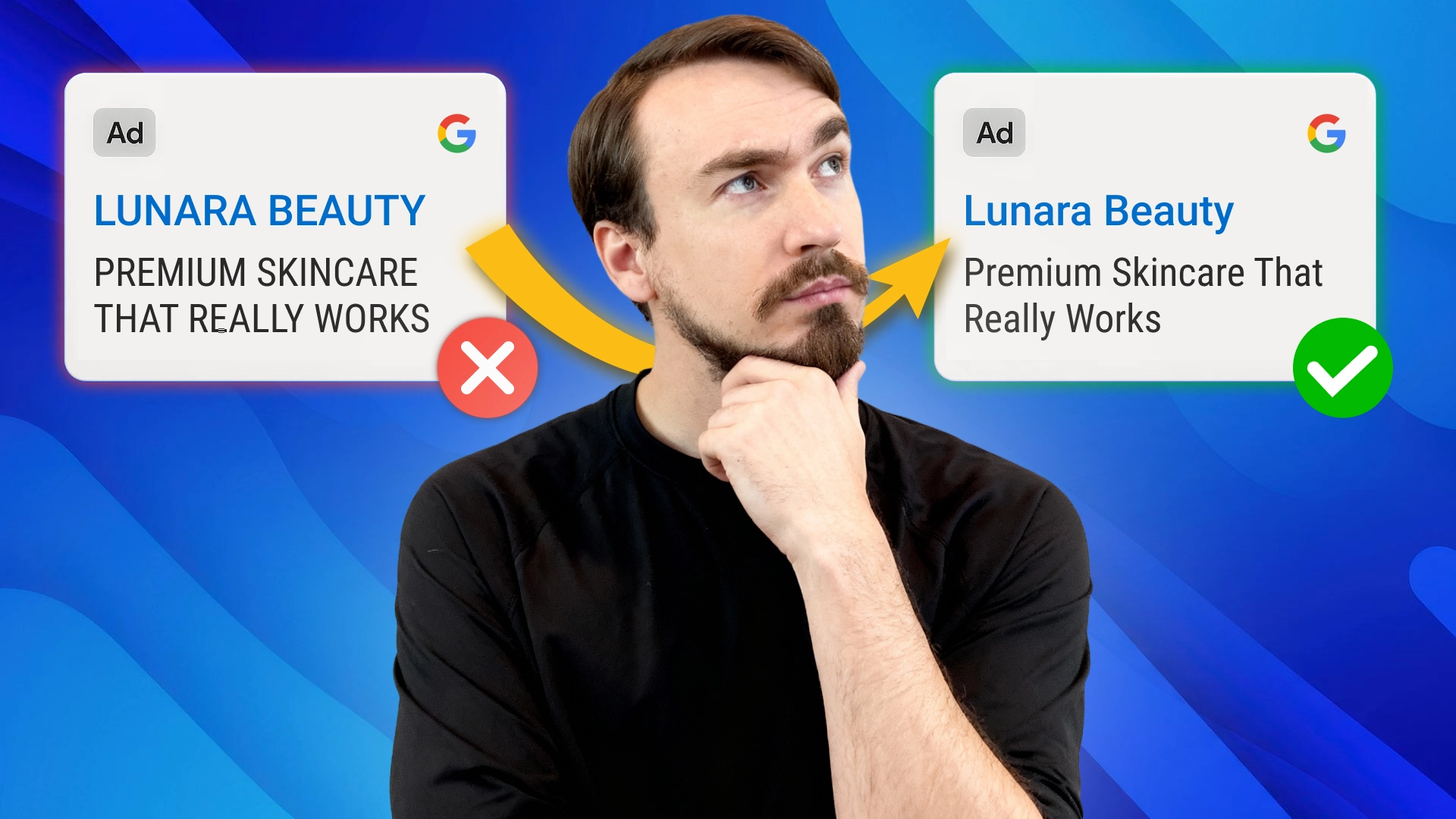
Google holds ad creative to strict formatting standards to maintain a clean search experience. Common triggers include gimmicky punctuation (such as multiple exclamation marks), excessive capitalization for emphasis (“FREE ESTIMATES”), symbols used in place of letters, phone numbers typed directly into headline text instead of call assets, and repetitive keyword stuffing.
Additionally, under the Unidentified Business policy, your ad or landing page must clearly display your recognized brand name or domain. If your company name uses legitimate non-standard capitalization or acronyms like HVAC, ensure the exact styling appears on your landing page and request a manual review.
Destination Requirements
Destination issues can pull every ad pointing to a landing page offline at once. Common triggers include 404 errors, slow mobile load speeds, redirect chains, and Destination Mismatch flags where the display URL domain differs from the final landing page domain.
To fix destination flags, test your final URL in a mobile incognito browser, simplify tracking templates so they resolve cleanly, and confirm with your web developer that your robots.txt file and firewall allowlist AdsBot-Google.
Restricted Verticals
Regulated industries face strict pre-approval and certification requirements:
- Healthcare and Medicines: Advertising prescription drugs, addiction treatment, or telehealth prescription services requires third-party LegitScript certification and Google certification before ads can run.
- Financial Services: Promoting loans, credit, debt services, or investments requires G2 and local financial verification alongside clear landing page disclosures detailing APR ranges, fees, and repayment terms.
- Trademarks: While Google generally allows bidding on competitor keywords, using a registered trademark inside your visible ad text without owner authorization may trigger a restriction. Informational sites and authorized resellers must meet specific landing page rules or have the brand owner submit formal trademark authorization to Google.
How the Appeal Process Works
When you have corrected a violation or confirmed that Google’s automated classifier made an error, you can request a re-evaluation. Following Google’s appeal rules prevents your submissions from getting blocked:
- Respect the Three-Appeal Limit: Google strictly limits advertisers to three self-serve appeals per disapproved ad. If all three appeal attempts fail, the in-account appeal option locks (Exceeded retry-limit), forcing you to contact Google Ads support manually to pursue further review.
- Follow the 24-Hour Rule: Always wait at least 24 hours before submitting a follow-up appeal on the same ad. Submitting multiple appeals within a single day flags your submission as a duplicate and can trigger temporary processing holds across your account.
- Watch the Six-Month Deadline: Be mindful of aging policy flags. Effective July 21, 2026, Google disables in-account appeal options for policy decisions older than six months. If you have older disapproved ads sitting paused in your account that you intend to use later, resolve or remove them promptly.
- Choose Fix vs. Dispute Correctly: When submitting an appeal, select Made changes to comply with policy if you edited your ad copy, fixed a broken link, or added missing disclosures to your landing page. Select Dispute decision only if your ad and website were already 100% compliant and Google’s automated system issued a false flag.
Differences in Campaign Types: Search vs. Performance Max
Policy enforcement behaves differently depending on the campaign architecture you run.
Search Ads
In Responsive Search Ads, policy issues often isolate to a single asset. If one headline is disapproved for punctuation or trademark use, the rest of the ad can frequently continue serving using your remaining approved headlines. While forgiving, this allows disapproved assets to sit unnoticed for months, quietly reducing your ad combinations and impression share.
Performance Max (PMax)
In Performance Max campaigns, Google reviews every headline, description, image, logo, and video individually. A single low-resolution image or prohibited phrase can slap an Approved (limited) label on the entire asset group, blocking your ads from serving on YouTube or Display while allowing Search placements to run. Open the asset group and inspect the View Details panel to isolate the specific flagged asset.
Google-Generated Assets
If you enable automatically created assets or text customization in Performance Max or AI Max, Google’s generative AI writes headlines and pulls copy from your site. Ironically, Google’s policy classifiers frequently disapprove headlines written by Google’s own AI. Use campaign-level text guidelines and URL exclusions to prevent automated tools from pulling risky terminology or unapproved pages into your campaigns.

SUCCESS STORIES
How StubGroup Helped a Crypto Software Brand Run Google Ads Without Disruptions for Over a Year
Learn how StubGroup’s proactive compliance framework enabled Merlin Crypto to break free from constant disapprovals and enjoy over a year of uninterrupted advertising, resulting in consistent growth and profitable scale.
Account-Level Health and Suspensions
Ignoring individual ad disapprovals can escalate into severe account-wide enforcement.
The Strike System
For repeated policy violations across several categories, Google enforces a progressive three-strike model following an initial 7-day warning. A first strike triggers a 3-day temporary account hold, a second strike imposes a 7-day hold, and a third strike results in a full account suspension. Addressing individual disapprovals immediately prevents strikes from accumulating.
Qualified Advertiser Status
Google restricts ad impressions for accounts it deems unqualified under its Limited Ad Serving policy. Building Qualified Advertiser status requires completing Advertiser Identity Verification, maintaining a clean compliance history free of repeated policy flags, and generating positive user engagement on transparent landing pages.
The Circumventing Systems Danger
Never delete a disapproved ad and create an identical replacement ad hoping to slip past the automated review filter. Google views repeated attempts to bypass policy enforcement as Circumventing Systems. Circumventing Systems is an egregious violation that triggers an immediate, permanent account suspension without warning.
Advanced Workflows
Managing policy compliance at scale requires proactive operational habits rather than reactive firefighting.
Incognito and Mobile Testing: Whenever a destination disapproval appears, test the exact final URL in an incognito mobile browser using cellular data rather than your office Wi-Fi. This replicates the external crawler environment and immediately reveals mobile rendering errors, geo-blocks, or firewall challenges.
Shared Fix Logs: Maintain an internal compliance log documenting every policy flag, the exact wording that triggered it, and the approved phrasing that resolved it. Sharing this reference across your marketing team prevents writers from repeating industry-specific trigger words in future campaign builds.
Leveraging Dedicated Representatives: If your account has access to an assigned Google representative, escalate persistent false flags directly through your rep once you have documented proof of compliance. Dedicated representatives can often route misclassified ads to internal policy specialists faster than standard support queues.
Turn Google Ads Into a Profitable, Disruption-Free Growth Engine
Google Ads disapprovals do not have to derail your lead flow or revenue. By diagnosing the exact policy trigger, fixing landing page and crawler bottlenecks at the root, and navigating Google’s appeal rules strategically, you can keep your ads approved and your campaigns scaling.
At StubGroup, we are a Premier Google Partner ranked in the top 1% of agencies, having generated over half a billion dollars in revenue for more than 3,000 clients. Whether you want an expert team to manage your Google Ads campaigns for maximum ROI, clean up recurring ad disapprovals, or protect your account from compliance disruptions, we are ready to help. Contact StubGroup today to schedule your free Google Ads consultation and get an expert review of your account.

Frequently Asked Questions
Why are my Google Ads disapproved even though I didn’t change anything?
Google periodically re-crawls live landing pages (and even paused ads) on its own schedule to check for ongoing policy compliance. An existing ad can suddenly become disapproved if Google’s automated crawler (AdsBot-Google) hits a temporary server timeout, gets blocked by a firewall or Cloudflare bot protection, detects a new website change or broken link, or if Google updates its automated policy classifiers.
Where can I find the exact reason for my ad’s disapproval?
You can find the exact violation in two places inside your Google Ads account:
- The Policy Manager: Navigate to Admin > Policy and open the dashboard to view all active violations, affected assets, and appeal records under the Policy Issues tab.
- The Policy Details Column: Customize your Ads and Assets tables to add the Policy Details column, which displays the exact violation name and policy link across your campaigns without needing to hover over individual status icons.
How do I fix a disapproved Google Ad?
First, check the Policy Details column or Policy Manager to identify the exact rule cited. Next, resolve the root issue (such as removing gimmicky punctuation or unsubstantiated claims, fixing broken destination links, adding missing footer disclosures, or allowlisting AdsBot-Google in your firewall and robots.txt file). Finally, either save your edited ad to trigger a fresh review or submit an appeal in Policy Manager selecting Made changes to comply with policy (or Dispute decision if your ad and site were already fully compliant).
Should I delete a disapproved ad and create a new one?
No. Deleting a disapproved ad and creating an identical replacement ad hoping to slip past automated filters violates Google’s Circumventing Systems policy. Circumventing Systems is an egregious violation that can trigger an immediate, permanent account suspension without prior warning.
How long does it take for an ad to be approved after I fix the error?
Standard automated reviews typically finish within one business day, and minor editorial edits often clear within a few hours. However, ads in sensitive or regulated verticals (such as healthcare, pharmaceuticals, cryptocurrency, or financial services) undergo stricter scrutiny and can take several business days to review.
Will editing a disapproved ad automatically trigger a new review?
Yes. When you edit a disapproved ad’s copy, headlines, or destination URL and save your changes, Google automatically places the ad back into the review pipeline. If the disapproval was caused by a landing page issue or an automated false flag rather than the ad text itself, you should fix the landing page (if needed) and submit a formal appeal through the Policy Manager.
How many times can I appeal a disapproved ad?
Google strictly limits advertisers to three self-serve appeal attempts per disapproved ad. Always wait at least 24 hours between appeal submissions so your request is not flagged as a duplicate. If all three self-serve appeals fail, the in-account appeal button locks (Exceeded retry-limit), and you must contact Google Ads support manually for further review.
How do I appeal an ad disapproval that is more than six months old?
Effective July 21, 2026, Google disables in-account self-serve appeal options for policy decisions older than six months. If you have older paused ads with legacy disapprovals that you no longer need, delete them from your account; if you need to run them, create a newly updated, policy-compliant ad or contact Google support directly.
What should I do if my appeal is denied?
Do not immediately resubmit the same appeal. Wait at least 24 hours, carefully re-read the cited policy, and audit both your ad copy and your entire landing page (including footers, redirects, and mobile rendering) for overlooked triggers. Once you have made concrete compliance updates or gathered stronger documentation, submit a revised appeal.
When should I contact Google Ads support vs. filing an in-account appeal?
Always start with the self-serve in-account appeal workflow inside your Ads table or Policy Manager. You should contact Google Ads support (or escalate through a dedicated Google representative, if you have one) when an ad stays stuck in Under Review for more than two business days, when you have exhausted all three self-serve appeal attempts (Exceeded retry-limit), or when an aged policy decision is older than six months.
Why was my ad disapproved for “Destination Not Working” when the site is live?
Destination disapprovals often happen when Google’s ad crawler (AdsBot-Google) hits a technical roadblock that a human visitor never sees, such as a brief server timeout, Cloudflare bot protection, an aggressive firewall, or geographic IP blocking. Test your exact final URL in an incognito mobile browser using cellular data rather than office Wi-Fi, and ensure your firewall and robots.txt file allow AdsBot-Google unrestricted access.
How do I stop Google’s AI-generated assets from getting my PMax campaigns flagged?
If automatically created assets or text customization generate headlines that violate Google’s policies, use campaign-level text guidelines to restrict risky phrasing and apply URL exclusions to prevent Google’s AI from pulling copy from unapproved pages on your site. You can also inspect the View Details panel inside your Performance Max asset group to isolate and remove individual flagged assets.
Does my website content affect my ad approvals even if the ad copy is clean?
Yes. Google’s automated classifiers and human reviewers crawl your landing page (and connected site pages) as part of every ad review. Missing business contact details, no accessible Privacy Policy, broken links, mismatched promotional pricing, or unsubstantiated claims on your landing page will trigger ad disapprovals even if your headlines and descriptions are completely compliant.
What is “Qualified Advertiser” status and how do I get it?
Qualified Advertiser status is Google’s internal trust threshold used to determine whether your account can serve ads without impression caps under its Limited Ad Serving policy. You earn and maintain Qualified Advertiser status by completing Advertiser Identity Verification, building a consistent history of policy compliance free of repeated disapprovals, and sending traffic to transparent landing pages with positive user engagement.